Blur Image Online
Blur or pixelate faces, text, numbers and private details in your photos. The marked pixels are rewritten in the download - not covered with a layer you can remove.
Your images
Mark what you want to hide
Drag over anything private - faces, names, numbers, plates. The effect is previewed instantly on the image.
Export complete
Why Blur an Image?
A thin black line or a transparent shape can often be removed to reveal what is underneath. Blurring and pixelating replace the actual pixels, so the exported photo no longer contains the readable detail.
- Hide the faces of bystanders and children before posting photos
- Remove names, email addresses, phone numbers and account details from screenshots
- Cover license plates, house numbers and documents in photos you share
- Prepare images for public posts, support tickets and marketplace listings without exposing private data
How to Blur an Image
 1
1
Upload Your Photos
Drag one or several images into the tool, or click to browse. JPG, PNG, WebP and other common formats are supported, and nothing is uploaded.
Tip: you can add up to 20 images and mark each one separately.
 2
2
Mark and Choose an Effect
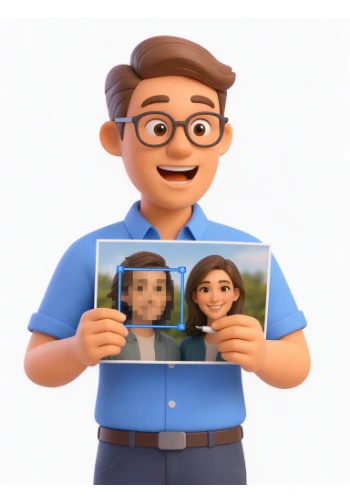
Drag a box over anything private. Choose Blur, Pixelate or a solid black box, and adjust the strength until the detail cannot be read.
 3
3
Download the Clean Image
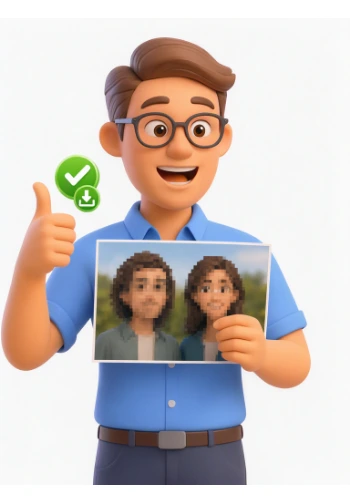
Click Blur image. Each marked area is rewritten in the exported file while the rest of the photo keeps its full quality. Download single images or all of them as a ZIP.
Frequently Asked Questions
Is blurring an image permanent?
In the exported file, yes. The pixels under each marked area are replaced, and there is no separate layer you can move aside or switch off. Keep your original if you may need the hidden detail later.
Should I blur or pixelate?
Pixelate with a high strength is the safest option for faces, text and numbers because large blocks remove readable detail. Blur looks more natural; use a strong setting so the area cannot be sharpened back into something recognizable.
When is a black box the better choice?
A solid black box hides everything and is the safest option when you must be certain nothing shows through. Blur and pixelate keep the photo looking natural, which is better for faces and backgrounds.
Are my photos uploaded anywhere?
No. Everything runs in your browser. Your images never leave your device, there is no account and no server copy, and they disappear when you close or reload the page.
Can I blur several images at once?
Yes. Add up to 20 images, mark each one separately, and export them all. Images you do not mark are copied unchanged, and multi-image exports can be downloaded as a ZIP.
Does it work with screenshots and phone photos?
Yes. Any image format your browser can open works, including screenshots, scanned documents and photos straight from a phone. Rotated photos are corrected automatically.
Will the rest of the photo lose quality?
The untouched parts keep their full resolution. JPEG re-encodes the whole image at your chosen quality, so pick PNG for lossless output or WebP for smaller files with very little loss.
Can I undo the blur after exporting?
You can remove or clear marks as often as you like before exporting. After the export, the change is part of the new file. Your original image on disk is never touched, so it remains your backup.
How strong should the blur be?
Strong enough that you cannot recognize the face or read the text, even when zoomed in. The preview updates instantly. When in doubt, use pixelation with a high strength or a black box.
Is it free?
Yes - completely free, with no account, no signup and no watermark on the exported images.
Try It Free
No signup, no watermarks, no uploads - blur any photo and share it with confidence.
Blur My Image