Merge PDF files
Combine PDFs into one polished document. Reorder files and pages, rotate or drop what you don't need, then export a single file — right in your browser.
Files in your merge
Drag cards to reorder. The order here is the page order of the result.
How to merge PDFs
 1
1
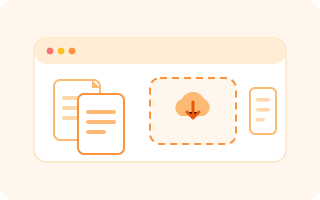
Add your PDFs
Drag files onto the drop zone or click to browse. Every file gets a live first-page thumbnail and its page count.
You can add up to 20 files per merge.
 2
2
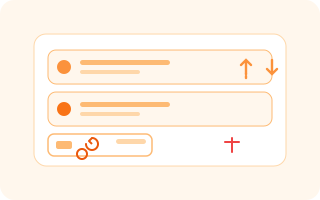
Arrange files and pages
Drag the cards to set the order, or open a card to rotate and delete individual pages. What you see is the order of the result.
Use the arrow buttons for precise, keyboard-friendly moves.
 3
3
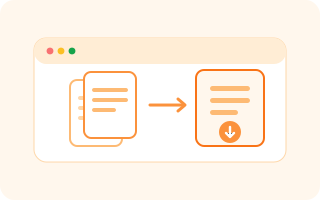
Merge and download
Choose your options, hit Merge, then download the single combined PDF. Everything happens on your device.
Frequently asked questions
How many PDFs can I merge at once?
Up to 20 files per merge, with a 500 MB limit per file.
Are my files uploaded to a server?
No. Merging runs entirely in your browser with JavaScript — your documents never leave your device.
Does merging reduce quality?
No. The default “Keep original” mode copies pages losslessly, so text and images stay exactly as they were.
Can I reorder pages?
Yes. Drag file cards to reorder whole documents, and expand a card to reorder, rotate, or delete individual pages.
Can I add page numbers or bookmarks?
Yes. Turn on page numbers and bookmarks in the options to add numbering and a clickable table of contents for every file.
Can I merge password-protected PDFs?
Unlock them first with our Unlock PDF tool, then merge. Protected files are flagged so you can fix them before merging.
Is there a watermark?
Never. Pixia adds no watermarks and never asks you to sign up.
Does it work on mobile?
Yes. The tool is fully responsive and works on phones, tablets, and desktops.
Merge your PDFs now
Free, private, and instant — combine your PDFs into one file without leaving your browser.
Merge PDF files