OCR PDF Recognition
Extract text from scanned PDF documents and images using optical character recognition. Works 100% in your browser.
Documents
Recognition settings
Cleaning up the page improves accuracy on photos, scans and low-contrast text.
Advanced options
Tell the engine how the text is arranged for better results.
Summary
Recognised text
Fix any mistakes here — your edits are used when you copy or download the text.
Download
Why OCR a PDF?
OCR unlocks the text hidden inside scanned pages so you can search, copy, edit, and reuse it.
- Search inside old scanned contracts and reports instead of reading them page by page.
- Copy names, numbers, and quotes from a scanned document into your own notes or documents.
- Make scanned books and articles accessible to screen readers and text-to-speech tools.
- Reuse content from image-based PDFs in emails, spreadsheets, or translated documents.
How to OCR a PDF
 1
1
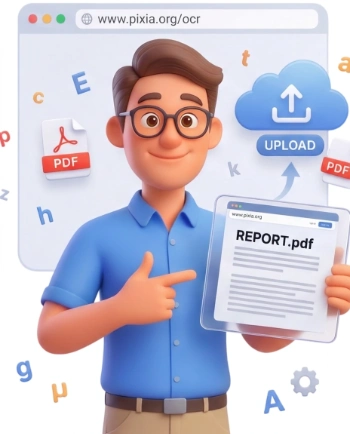
Step 1: Upload Your PDF
Drag and drop your scanned PDF onto the upload area or click to browse. The tool accepts a single PDF up to 500 MB and works entirely in your browser using on-device processing.
Tip: For better results, upload a clean scan with good contrast and straight pages.
 2
2
Step 2: Select the Document Language
Pick the language of your document from the OCR Language dropdown. Choosing the right language noticeably improves recognition, and over 30 languages are available including English, French, Spanish, Arabic, German, and more.
 3
3
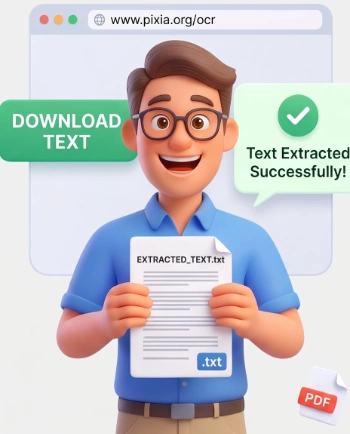
Step 3: Extract, Copy, and Download
Click Extract Text and watch each page get recognized. Results appear with a confidence score per page, and you can copy any page's text or click Download All Text to save everything as a text file.
Frequently Asked Questions
What is the maximum file size I can process?
You can process a single PDF up to 500 MB. Larger files might take longer or run slowly on low-end devices, so keeping your document within the limit gives the smoothest results.
Are my files uploaded to a server?
No. OCR runs entirely in your browser with Tesseract.js, so your PDF never leaves your device and nothing is uploaded. Files are automatically removed from memory after the session.
Can I OCR a PDF on my phone?
Yes, the tool works in any modern browser. On-device processing means your document stays private and results come back quickly.
What output formats can I get?
Each page's text appears on screen where you can review and edit it. You can copy text, download a plain text file (.txt), or download a searchable PDF where the recognised text sits invisibly on top of the original scan.
What does the confidence score mean?
Each page shows a confidence percentage that reflects how sure the engine is about its recognition. High scores mean clean results, while low scores are a hint to check that page or use a better-quality scan.
Can I OCR several PDFs at once?
Yes. Drop one or more PDFs and the tool processes every page, showing a thumbnail and confidence score for each. You can review results per page and download each searchable PDF individually or as a ZIP.
Do I need OCR for a digital PDF?
Usually not. Digital PDFs already contain selectable text. OCR is meant for scanned or image-based PDFs, where the pages are photos of documents and the text is not accessible.
Which languages are supported?
Over 30 languages are available, including English, French, Spanish, German, Italian, Portuguese, Arabic, Russian, Chinese, Japanese, Korean, and many more. Select the language in the dropdown before extracting.
Extract Text in Seconds
Turn your scanned PDFs into editable text right now — no signup, no watermarks, completely free.
OCR My PDF