PDF to Image
Convert each page of your PDF into high-quality JPG or PNG images.
Your PDFs
Add PDF files. Every page becomes an image.
Pages
Click a page to include or skip it. Use the buttons to select in bulk.
Image options
Summary
Done
Your images are ready to download. They never left your device.
Why Convert a PDF to Images?
Images are easier to embed, edit, and share than a full PDF document.
- Turn PDF pages into slides or visuals for presentations and social posts.
- Embed document pages directly into blog posts, emails, or your own software.
- Export a page as a standalone image when you only need that single page.
- Create lightweight previews of reports and brochures for quick sharing.
How to Convert PDF to Image
 1
1
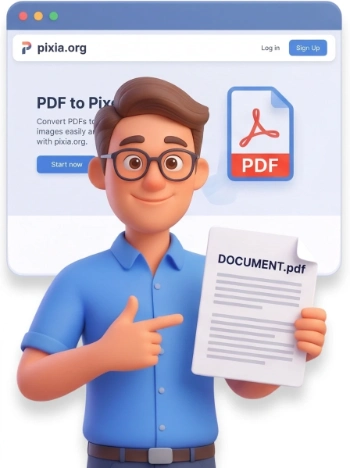
Step 1: Upload Your PDF
Drag and drop your PDF into the upload area or click to browse. You can convert one file or several at once, and each file can be up to 500 MB.
Tip: PNG is best for text and diagrams, while JPG gives smaller files for photos and scanned pages.
 2
2
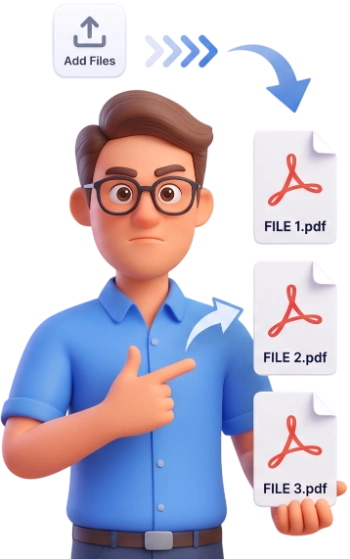
Step 2: Choose Format and Quality
Select PNG, JPG, or WebP, then pick a resolution from Low to Ultra. For JPG and WebP you can fine-tune quality, and you can include or skip individual pages before exporting.
 3
3
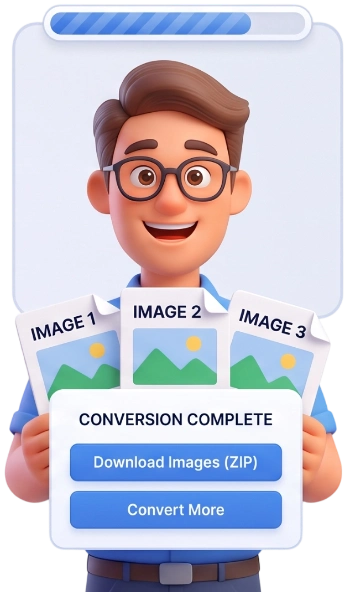
Step 3: Convert and Download
Click Convert to Images and every selected page is exported as its own image, named like yourdocument-page-1.png. Download them one by one or grab everything in a single ZIP.
Frequently Asked Questions
Is there a file size limit?
Each PDF can be up to 500 MB, so most documents and scanned files are fine. Conversion stays fast because everything runs in your browser.
Are my PDFs uploaded anywhere?
No. The conversion runs entirely on your device, so your documents are never uploaded to a server and are cleared automatically when you are done.
Can I convert a PDF on my phone or tablet?
Yes. The converter works in any modern mobile browser, so you can export images on a smartphone or tablet without installing anything.
Is this tool free, and do I need an account?
It is completely free. No account, no login, no watermark, and no hidden fees, just upload, convert, and download.
What resolution are the exported images?
You choose: Low, Medium, High, or Ultra. Higher settings render the page at a larger scale for sharper, print-friendly images, while lower settings keep the files small.
What is the difference between PNG and JPG output?
PNG is lossless and ideal for text, logos, and diagrams, but produces larger files. JPG compresses more, giving smaller files with a quality slider to balance size and detail.
Can I convert only some pages of a PDF?
Yes. After the PDF loads, every page appears as a thumbnail and you can click any page to include or skip it. Use All, None, or Invert to change the selection quickly.
Will the images keep the text of my PDF?
The text is rendered as part of the picture, so it looks exactly like the original page, but it is no longer selectable or editable text.
How do I get smaller image files?
Choose JPG or WebP, lower the resolution, and move the Quality slider down. The lower the percentage, the smaller the file, with a small trade-off in detail.
Can I convert several PDFs at once?
Yes. Add as many PDFs as you like; the pages of every file are combined into one list and exported to a single ZIP archive.
Convert PDF to Images Free
Turn every page into a PNG, JPG, or WebP in seconds, no signup, no watermarks, completely free.
Convert My PDF