Create & Note
Design, annotate, and build professional PDFs from scratch - no installation required.
Create a brand-new PDF from scratch right in your browser with Pixia. Add text with popular Google Fonts, insert images and SVG graphics, draw freehand with the pen, drop sticky notes and annotations, build styled tables, and turn data into 12 chart types — bar, line, pie, doughnut, area, horizontal bar, scatter, radar, funnel, waterfall, polar area, and treemap. Style everything with colors, gradients, strokes, and typography, then export a clean, print-ready PDF in seconds.
Create & Note
Start with a blank canvas - pick page size, orientation, and background.
Start from a template
Browse professional templates and customize them to fit your needs — get started in seconds.
Why Create a PDF?
Building a document as a PDF from the start keeps your layout fixed on every device and makes it easy to share, print, and archive.
- Design invoices, certificates, posters, and reports without installing any software
- Embed real fonts so your text stays crisp and selectable in the final file
- Combine images, vector graphics, tables, and charts in one polished document
- Build documents page by page with full control over layout and styling
How to Create a PDF
Step 1: Set Up Your Document
Pick a page size such as A4 or Letter, choose portrait or landscape orientation, and set a background color. Then click Start Creating to open the page editor.
Tip: A4 portrait is perfect for most documents, and you can add as many pages as you need.
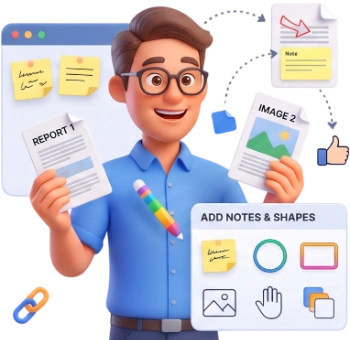
Step 2: Design Your Page
Use the toolbar to add text, images, SVG graphics, shapes (arrows, lines, rectangles, circles), tables, sticky notes, annotations, and freehand pen drawings. Choose from 12 chart types — bar, line, pie, doughnut, area, horizontal bar, scatter, radar, funnel, waterfall, polar area, and treemap. Click or drag to place elements, then resize, rotate, and style them to your liking.
Step 3: Export and Share
Review your pages, then click Export PDF. Text is embedded with real fonts and graphics stay vector-sharp for crystal-clear results. You can also download pages as PNG or JPEG, or save your work as a JSON file to reopen and continue editing later.
Frequently Asked Questions
Is creating a PDF free?
Yes. There is no account, no watermark, and no hidden limit. Create and export as many documents as you like, all in your browser.
Does the editor run online?
Everything runs locally in your browser. Nothing is uploaded to a server, so your documents stay private even while you are working on them.
Can I use custom fonts?
Yes. The editor includes popular Google Fonts, and the fonts are embedded in the exported PDF so your text looks the same on any device.
Can I create multi-page documents?
Absolutely. Add as many pages as you need with the Add Page button and move between them with the page navigator or the thumbnail panel.
Can I add images to my PDF?
Yes. Upload images from your device and place them anywhere on a page, then resize and rotate them to fit your layout.
Can I insert SVG graphics?
Yes. Paste SVG code into the SVG tool and it is inserted as a vector graphic that stays sharp when you zoom or print.
Can I add tables?
Yes. Add a table, choose the number of rows and columns, and type directly into the cells. Header rows are supported for a cleaner look.
How many chart types can I choose from?
Twelve: bar, line, pie, doughnut, area, horizontal bar, scatter, radar, funnel, waterfall, polar area, and treemap. Add labels, values, and colors, and the chart updates instantly.
Will the text remain selectable in the exported PDF?
Yes. Text is exported as real text with embedded fonts, so it stays selectable, searchable, and readable at any zoom level.
Can I use this tool on my phone?
Yes. The editor works in any modern mobile browser, so you can build and export PDFs from a phone or tablet too.
Can I draw freehand on my document?
Yes. The Pen tool lets you draw freehand directly on the page — great for signatures, sketches, or handwritten notes.
Can I add sticky notes and annotations?
Yes. Drop a sticky note to jot down a reminder, or use the annotation tool to add short comments that stand out.
Can I export PNG or JPEG, or save my work?
Yes. Besides PDF, you can download a page as PNG or JPEG. You can also save your work as a JSON file and reopen it later to continue editing.
Can I undo a mistake?
Yes. Use Undo (Ctrl+Z) and Redo (Ctrl+Y) to step backward and forward through every change.
Try It Free
No signup, no watermarks, completely free — create your first PDF in minutes.
Create My PDF