JPEG to PDF Converter
Convert JPEG images into a single PDF document.
Your JPEGs
Add JPG or JPEG images. Each one becomes a page.
Pages
Drag an image to reorder it. Click an image to include or skip it.
Tip: drag the thumbnails, or use the arrow buttons, to set the page order.
PDF options
Summary
Done
Your PDF is ready to download. It never left your device.
Why Convert JPEG to PDF?
Bundling JPGs into a PDF gives you one clean file that is easy to send, print, and archive.
- Send a full photo album as a single file instead of a long list of loose JPG attachments.
- Archive camera shots and scanned receipts in an order that will never shuffle itself around.
- Print several photos at once without rebuilding each page in a word processor.
- Share high-resolution pictures that viewers cannot accidentally edit or misplace.
How to Convert JPEG to PDF
 1
1
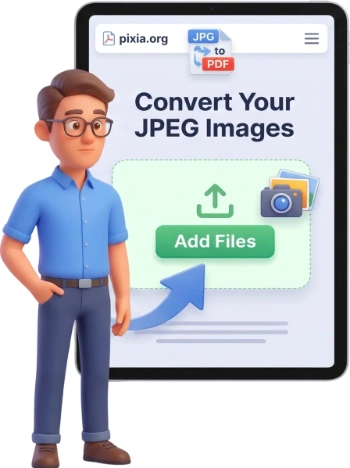
Step 1: Upload Your JPEGs
Click the upload area or drag and drop your JPG and JPEG photos straight onto the page. You can select many files at once, and each file can be up to 500 MB.
Tip: pick all the pictures you need in one go so you do not have to add them one by one.
 2
2
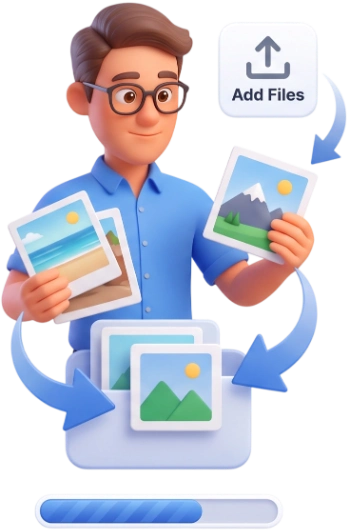
Step 2: Arrange the Order
Every photo becomes its own PDF page, so the sequence matters. Drag the thumbnails to reorder them, or click a picture to include or skip it before converting.
 3
3
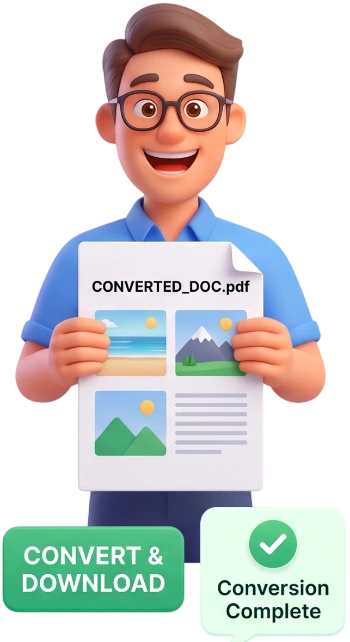
Step 3: Convert and Download
Press the Convert to PDF button and wait a few seconds. Pixia builds the document in your browser and downloads the finished PDF automatically.
Frequently Asked Questions
Is there a file size limit?
Each JPG can be up to 500 MB, which is plenty for phone photos and high-resolution scans. Your browser stays responsive because the whole job runs locally.
Are my images uploaded to a server?
No. Everything happens in your browser, so your pictures never leave your device. Files are processed locally and cleared automatically after the conversion.
Does it work on my phone?
Yes. The tool runs in any modern browser on iOS or Android, and the layout adapts to a small screen, so you can convert just as easily from your phone as from a computer.
Is JPEG to PDF really free?
Completely. There is no account to create, no credit card, and no watermark stamped on your document. Convert as many photos as you like without paying a cent.
Will my images lose quality in the PDF?
No. Each JPEG is embedded at its original resolution, so the PDF keeps every detail. If your photo is larger than an A4 page, Pixia scales it down slightly to fit without cropping.
Can I combine multiple images into one PDF?
Yes, that is the core feature. Upload as many JPEGs as you need and every one becomes a page in a single PDF file, in the order you arrange them.
How does Pixia handle landscape and portrait images?
Each page is sized to match its photo, so a portrait picture produces a portrait page and a wide picture produces a landscape page. Nothing gets cropped or distorted.
What page size will the PDF use?
Pages follow your photo dimensions, up to an A4-size boundary, with no margins added. This keeps the layout natural, so the document prints well without wasted white space.
Can I scan documents straight into the PDF?
You can use your phone camera or a scanner to create JPG files, then upload them here. The tool accepts scanned images just like any other picture and keeps them readable in the PDF.
Which image formats are supported?
This tool is dedicated to JPG and JPEG files. Each picture is embedded as a page in the finished PDF, and the whole conversion runs locally in your browser.
Try It Free
No signup, no watermarks, no limits to convert your photos into one tidy PDF.
Convert JPEGs to PDF