Redact PDF
Permanently remove sensitive text, images and personal data. The content is deleted from the file - not just covered with a black box.
Your PDF
Mark the content to redact
Drag on the page to mark anything you want to remove. Only pages you mark are converted to images.
Redaction complete
Why Redact a PDF?
Covering text with a black box does not remove it. Anyone can select or copy the hidden words underneath. True redaction deletes the content for good.
- Remove personal data before sharing contracts, invoices or medical records
- Hide account numbers, addresses, signatures and other confidential details
- Publish documents for legal, HR or compliance reviews without exposing private information
- Share files safely, knowing the hidden text cannot be copied, searched or recovered
How to Redact a PDF
 1
1
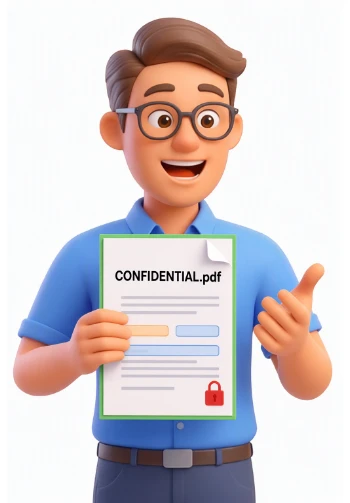
Upload Your PDF
Drag and drop the PDF you need to redact, or click to browse. Files up to 500 MB are supported and everything stays on your device.
Tip: work on a copy. Once a page is redacted and exported, the hidden content is gone for good.
 2
2
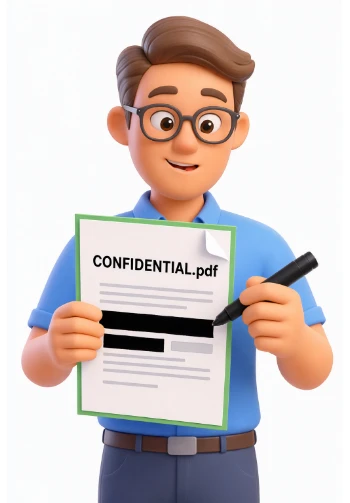
Mark the Content to Redact
Drag over any text, image or area you want to remove. Add as many boxes as you need on any page, then review each page before exporting.
 3
3
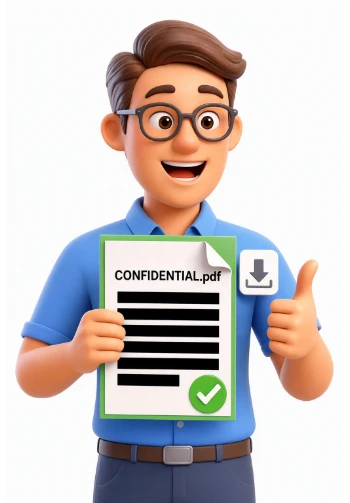
Redact and Download
Click Redact PDF. Every marked page is rebuilt as an image with the boxes burned in, while untouched pages keep their original selectable text. Download the clean PDF when it is done.
Frequently Asked Questions
Is redaction really permanent?
Yes. The marked pages are rebuilt without the hidden content, so the text and images under the boxes are deleted from the file. No one can select, copy, search or recover them afterwards.
Is a black box from another editor enough?
No. Drawing a shape over text only hides it visually. The original words usually remain in the file and can be copied, searched or extracted. This tool removes the content itself.
Are my files uploaded to a server?
No. Redaction happens entirely in your browser. Your document never leaves your device and is removed from memory when you close or reload the page.
Can I redact several pages?
Yes. Move between pages with the page controls or the thumbnail strip and draw as many boxes as you need. Every page with at least one box is rebuilt during export.
Will the rest of the document stay selectable?
Yes. Only the pages you mark are converted to images. All other pages keep their original text and vectors, so you can still select, search and copy text there.
Does it work on scanned PDFs?
Yes. Scanned pages are already images, and the boxes are burned directly into the rendered page, so the hidden areas are removed just the same.
Can I undo a redaction?
You can remove or clear boxes before exporting as often as you like. Once the PDF is exported the change is permanent, so keep the original file if you may need the hidden content later.
Which resolution should I choose?
150 DPI is fine for on-screen reading, 220 DPI is a good balance for sharing, and 300 DPI keeps small print sharp for printing. Higher resolutions produce larger files.
What should I redact?
Names, addresses, phone numbers, email addresses, account and card numbers, signatures, dates of birth and any other information that should not be seen by the recipient.
Is it free?
Yes - completely free, with no account, no signup and no watermark on your redacted PDF.
Try It Free
No signup, no watermarks, no uploads - redact any PDF and share it with confidence.
Redact My PDF