Extract Images from PDF
Save embedded photos and logos as image files.
Your PDFs
Add PDF files. Embedded images are detected automatically.
Extracted images
Click an image to include or skip it, then download the ones you want.
Open PDF to Image
Extraction options
Summary
Why Extract Images from a PDF?
A PDF keeps every photo, logo and diagram inside it — pulling them out gives you reusable, full-quality files.
- Reuse a logo, product photo or chart without recreating it from scratch.
- Get print-quality graphics straight out of a report or brochure.
- Recover pictures from a document when you no longer have the original files.
- Build an image library from a catalogue, magazine or presentation PDF.
How to Extract Images from a PDF
 1
1
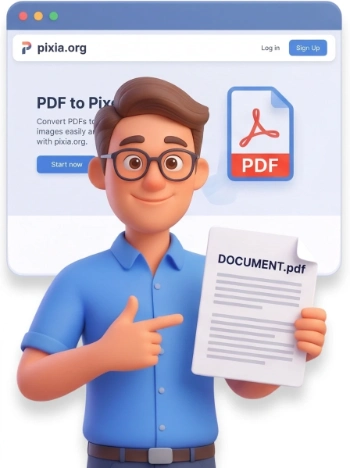
Step 1: Upload Your PDF
Drag a PDF into the drop zone or click to browse. Add as many files as you like — each one can be up to 500 MB.
Tip: the tool finds the real embedded pictures, not a screenshot of the page, so quality stays high.
 2
2
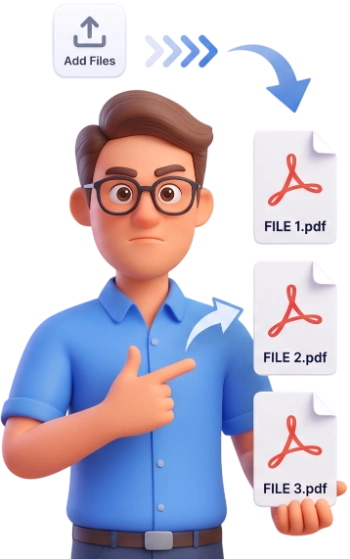
Step 2: Choose Your Options
Pick PNG, JPG or WebP, set a minimum size to skip tiny icons, and optionally remove duplicates or include inline images and masks.
 3
3
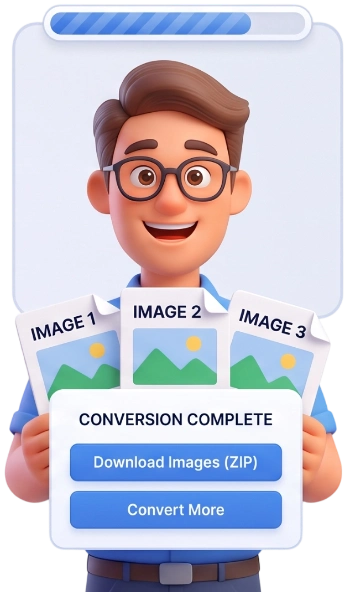
Step 3: Extract and Download
Click Extract images and every picture is pulled out at its original resolution. Review the results, deselect anything you do not need, and download them individually or all together in a ZIP.
Frequently Asked Questions
What is the difference between extracting images and converting a PDF to images?
Extracting pulls out the original pictures embedded inside the PDF at their native resolution. Converting renders each whole page as a new picture. Use extraction to grab embedded graphics, and conversion when you need the entire page.
Are my PDFs uploaded anywhere?
No. Everything is analysed inside your browser, so your documents never leave your device.
Will the extracted images keep their original quality?
Yes. Images are exported at the exact pixel dimensions stored in the PDF. PNG keeps them lossless, while JPG and WebP let you trade a little quality for a smaller file.
Why do I see fewer images than I expected?
The tool skips decorative items by default. Lower the minimum-size filter and enable inline images and stencil masks to catch every graphic.
Can I extract images from several PDFs at once?
Yes. Add multiple PDFs and every image found is collected into one list that you can download together as a single ZIP.
Does it work with scanned PDFs?
If a scanned PDF stores each page as one image, that page image is extracted. Scans already flattened into the page cannot be split further — use PDF to Image to export those pages instead.
Extract Images from PDF Free
Pull out every embedded picture in seconds — no signup, no watermarks, and nothing ever leaves your device.
Extract My Images