4-Color Screen Printing Separator
Separate any image into four halftone colour plates for screen printing.
Live Preview
See the simulated print, switch between the four plates and inspect the halftone dots.
Source image
Inks
Set the ink colour and screen angle of each plate, and switch a plate off to skip it. The percentage shows how much of the artwork each plate covers.
Halftone
Ruling and print width set how many halftone dots fall across the artwork. Use the detail view to inspect the dots at press resolution.
Tone
Output
Plates download as transparent PNG films with solid black dots, sized for the film output you choose. The preview PNG shows the simulated print in colour.
Why Separate Artwork for Screen Printing?
Screen printing builds an image from a few flat inks, so a full-colour photo has to be separated into one plate per ink.
- Turn any photo or logo into four clean ink plates ready for exposure onto screens.
- Angled halftone dots keep the four screens from interfering with each other and creating moiré.
- Preview the simulated print on the garment colour before you burn a screen.
- Everything runs in your browser — your artwork is never uploaded.
How to Separate a 4-Color Screen Print
 1
1
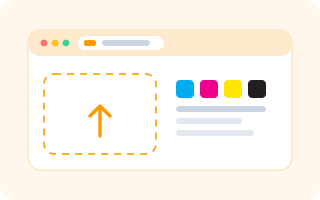
Step 1: Upload Your Artwork
Drop a PNG, JPG or WebP. Pixia converts it to CMYK in your browser and shows the composite print plus each of the four plates.
Tip: a high-resolution image with good contrast separates far better than a small screenshot.
 2
2
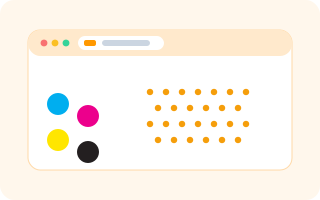
Step 2: Tune Inks and Halftone
Set each ink colour and screen angle, choose a dot or line screen, and adjust the ruling, print width, tone and black generation until the preview looks right.
Tip: keep the auto angles on for CMYK process work, and use the detail view to check the dots will not clash.
 3
3
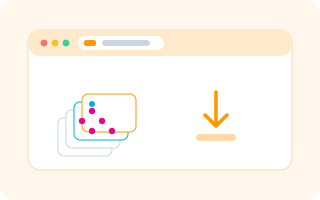
Step 3: Download the Plates
Download each plate as a transparent PNG film, grab them all at once as a ZIP, or save the coloured preview for your client.
Tip: print the films onto transparency at the film size you set, then expose each screen from its own plate.
Frequently Asked Questions
Is this screen print separator free?
Yes. Upload, separate and download as many plates as you like, free, with no account, no signup and no watermark.
Are my images uploaded to a server?
No. The whole separation runs locally in your browser with JavaScript and canvas, so your artwork never leaves your device.
What are CMYK separations?
CMYK stands for Cyan, Magenta, Yellow and Black — the four process inks. Separating splits every pixel into how much of each ink it needs, giving you four plates that rebuild the full-colour image when printed on top of each other.
Why do the plates use different angles?
If two halftone screens sit at the same angle their dots line up and create a distracting grid or moiré pattern. Offsetting them — the classic 15, 75, 0 and 45 degrees — keeps the dots interleaved and the image smooth.
What is black generation (GCR)?
GCR controls how much of the image darkness is carried by the black plate instead of mixing cyan, magenta and yellow. More black gives crisper shadows and uses less colour ink, while less black keeps a softer process look.
What ruling should I use?
Coarse screens (around 35 to 55 LPI) suit bold, high-contrast prints and screens that are easier to expose. Finer screens (65 to 85 LPI) hold more detail but need a tighter mesh and better registration.
What format are the plates?
Each plate downloads as a transparent PNG with solid black dots — a standard film positive. Print it onto transparency at your chosen size, or send it to a film output service, then expose each screen.
Can I print on a dark shirt?
Yes. Turn on the underbase option so the preview prints a white base under the inks, which is how dark garments are printed on press. You would then add a white plate to your film set.
Separate Your Artwork Free
Turn any image into four halftone plates in seconds — everything stays in your browser.
Separate an Image