QR Code Generator
Create professional QR codes for links, Wi-Fi, vCards, email, SMS and phone numbers.
Live Preview
Point your phone camera at the code to test it before you download.
Design
A centre logo covers part of the code, so error correction is raised automatically.
Why Use a QR Code?
QR codes turn a link, network or contact card into a single square you can scan with any phone camera.
- Share a website, menu or payment link without anyone typing a long URL.
- Let guests join your Wi-Fi instantly by scanning instead of typing the password.
- Put your full contact details on a business card with a vCard.
- Print a code for posters, packaging or events, in PNG or vector SVG.
How to Create a QR Code
 1
1
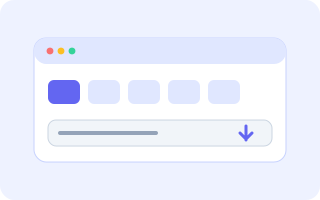
Step 1: Choose a Type and Enter Your Content
Pick what the code should do: a URL, plain text, Wi-Fi login, vCard contact, email, SMS or phone number. Then fill in the fields and the preview updates as you type.
Tip: for a website you can type example.com and Pixia adds https:// for you.
 2
2
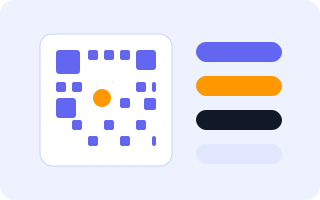
Step 2: Customise the Design
Choose square, rounded or dotted modules, set the foreground and background colours, pick an error correction level, and adjust the size and quiet zone. You can also drop a logo in the centre for branding.
Tip: keep strong contrast between the code and its background so every phone can read it.
 3
3
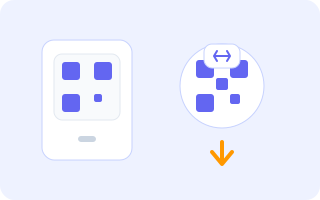
Step 3: Test and Download
Point your phone camera at the preview to check it scans correctly, then download a PNG for screens or print, or an SVG that stays sharp at any size.
Tip: use the PNG for quick sharing and the SVG when a printer asks for vector artwork.
Frequently Asked Questions
Is the QR code generator really free?
Yes. You can create and download as many QR codes as you like for free, with no account, no signup and no watermark added by Pixia.
Do my QR codes ever expire?
No. Pixia encodes your content directly into the image, so the code is a static, self-contained file. It keeps working forever and does not point to any Pixia server.
Are my contents uploaded anywhere?
No. Everything is generated locally in your browser with JavaScript. Your text, Wi-Fi password, contact details and logo never leave your device.
Can I add my logo in the centre?
Yes. Upload a PNG, JPG, WebP or SVG logo and it is placed in the middle. Pixia automatically raises the error correction level so the code stays scannable.
What is error correction, and which level should I choose?
Error correction lets a phone read the code even when part of it is damaged, dirty or covered. L recovers 7%, M 15%, Q 25% and H 30%. Higher levels are safer but make the code denser, so H is best when you use a logo.
Should I download PNG or SVG?
Download PNG for websites, chat and social media, or when you need a fixed pixel size. Download SVG for business cards, posters and packaging, because vector art stays perfectly sharp at any size.
Why does my code not scan?
The most common causes are low contrast, too little quiet zone around the code, or a logo that is too large. Keep a clear margin, use a strong colour difference, and try a bigger logo-free code if your camera struggles.
Can I use these codes commercially?
Yes. Every code you generate here is yours to use anywhere, including commercial projects, with no attribution required.
Create Your QR Code Free
Design a professional, print-ready code in seconds, with no signup and nothing uploaded.
Make a QR Code